Design the network once.
Foresight is a network designer that holds the floor plan, the equipment, the WiFi coverage, the cable runs, the bill of materials, the client quote and the install checklist as one design. Place an AP, the heatmap updates. Move a switch, the BoM updates. Edit a wall, everything follows.
Built for the engineer who has to be sure the design is right before the truck rolls. Early access opens to a small first cohort.
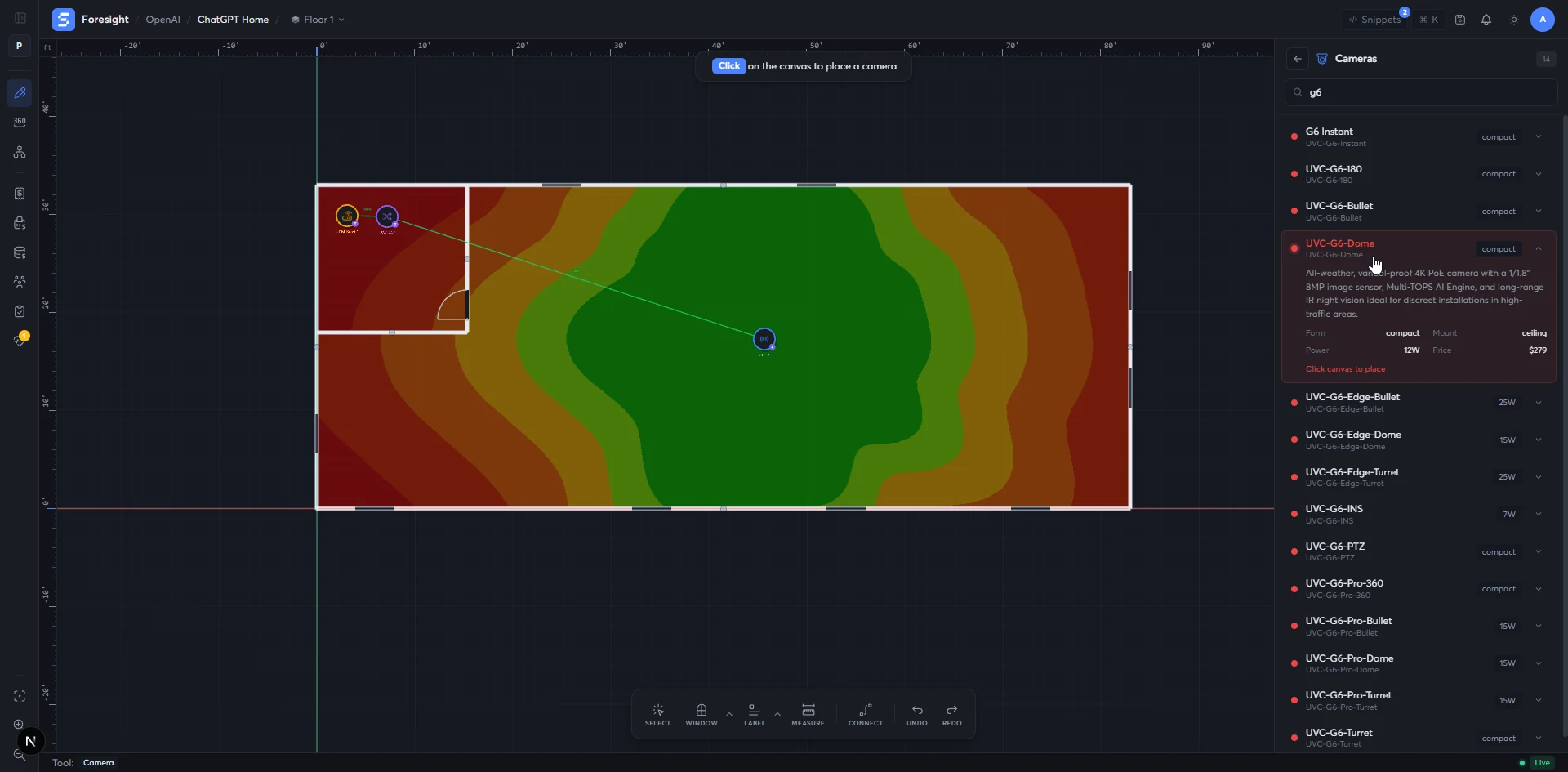
Walls, doors, windows, dimensions — exactly where they are.
Drop in a PDF, an image, or draw the plan on the canvas. Every wall measured, every dimension a number you can hand to a contractor.
- inputPDF · image · or draw
- wallssnap to ortho · 1 in
- first-classdoors · windows · penetrations
- updatestopology · BoM · WiFi
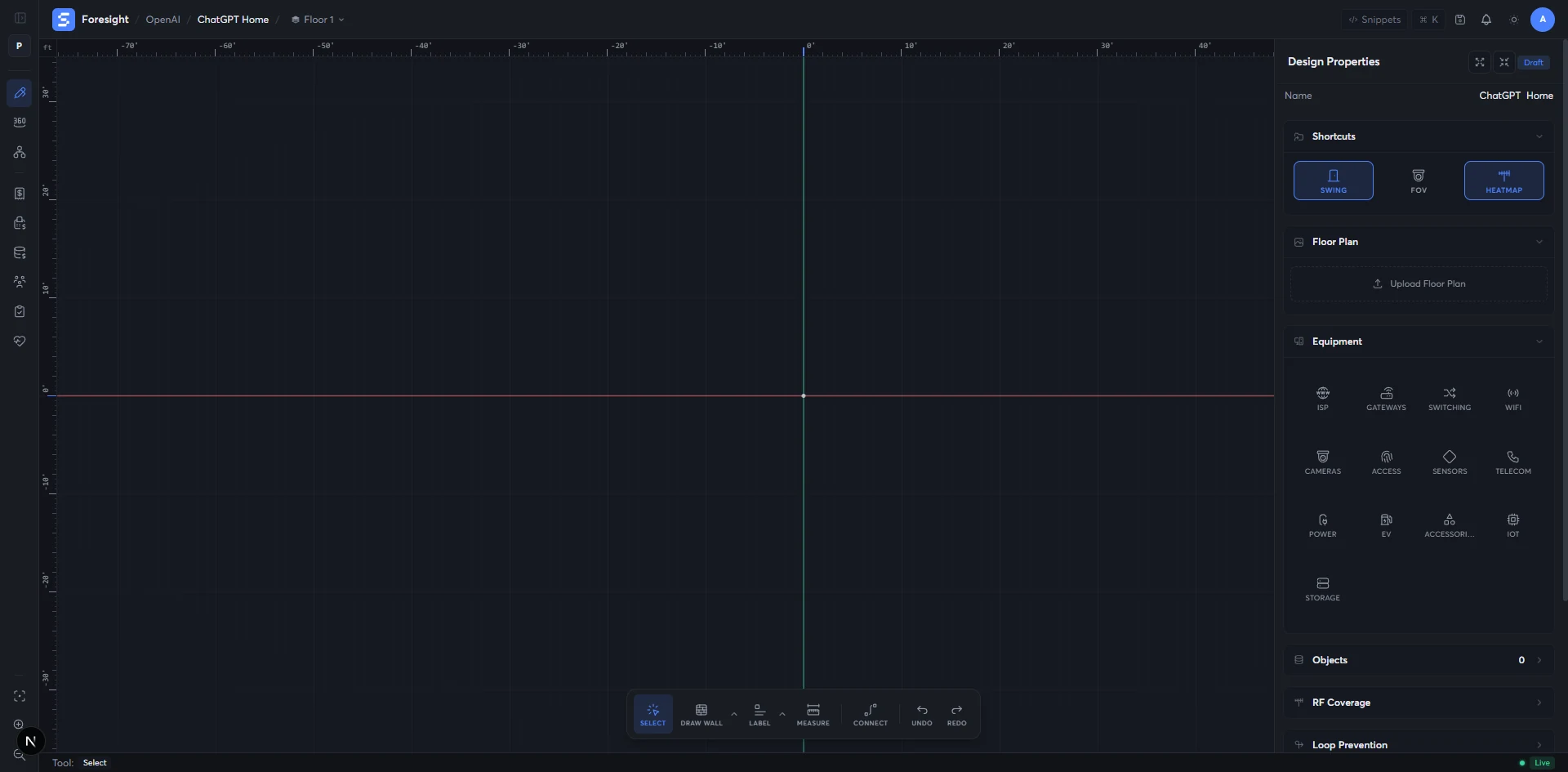
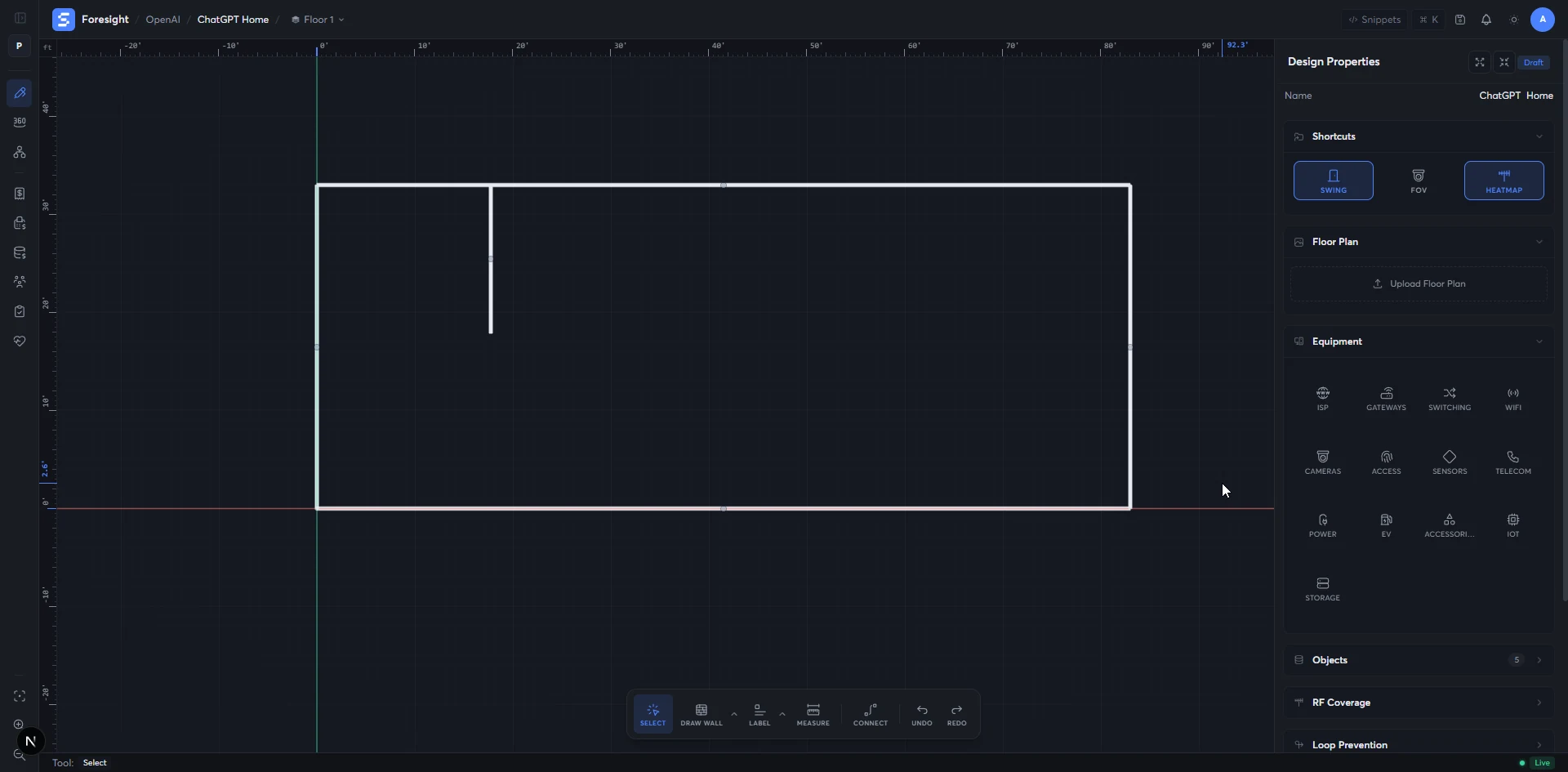
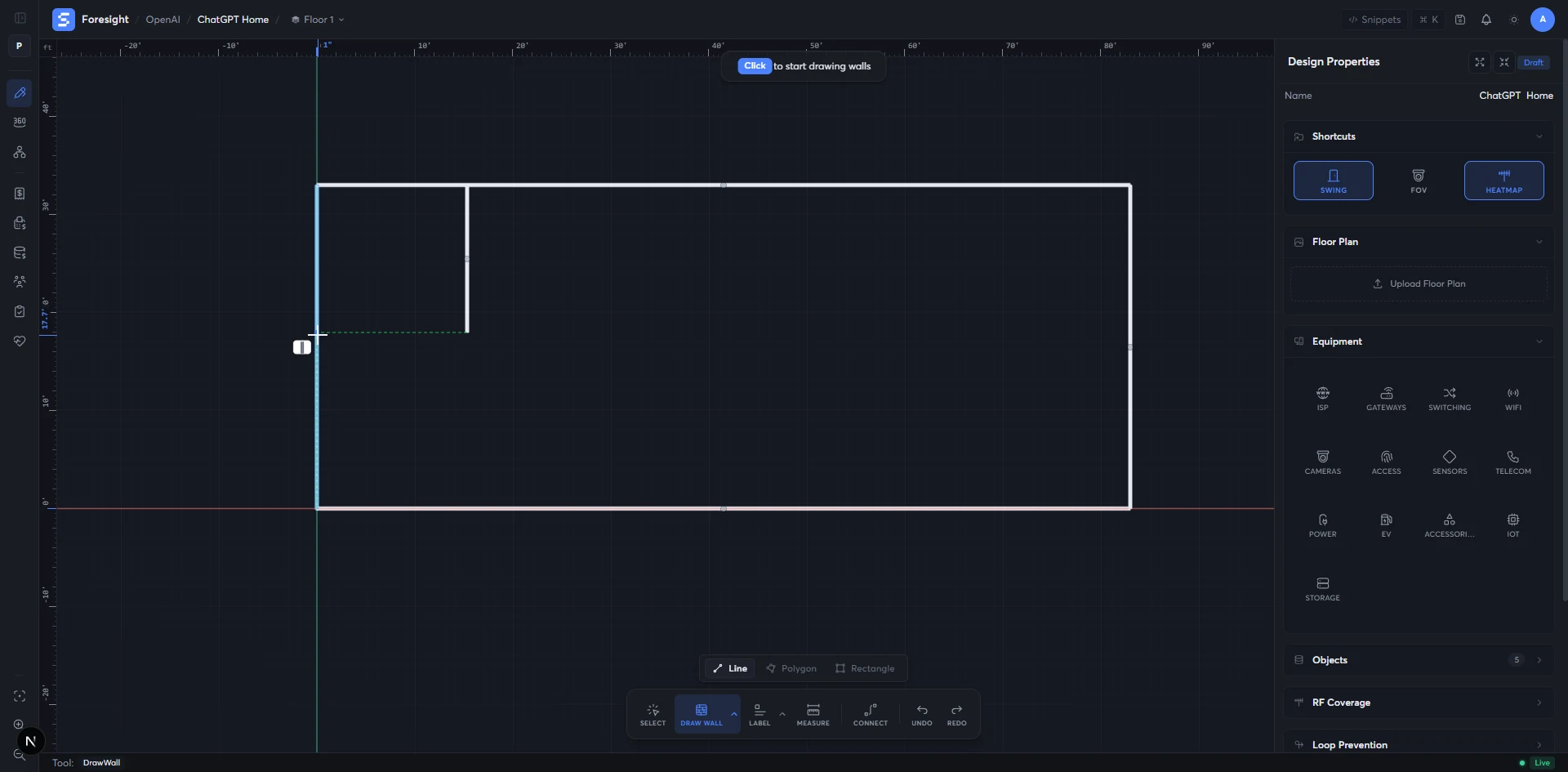
- PDF or image floor plan
- Building shell (length, width, ceiling height)
- Doors, windows, penetrations
- Measured vector floor plan
- Doors / windows / penetrations as first-class objects
- Foundation for WiFi coverage and cable runs
The full UniFi line, live, behind every drag.
Hundreds of UniFi products with mount types, port counts, PoE budgets, antenna patterns and product images — kept in sync with the manufacturer so you never quote a model that's been replaced.
- gateways25 models
- switches55 models
- access points54 models
- cameras67 models
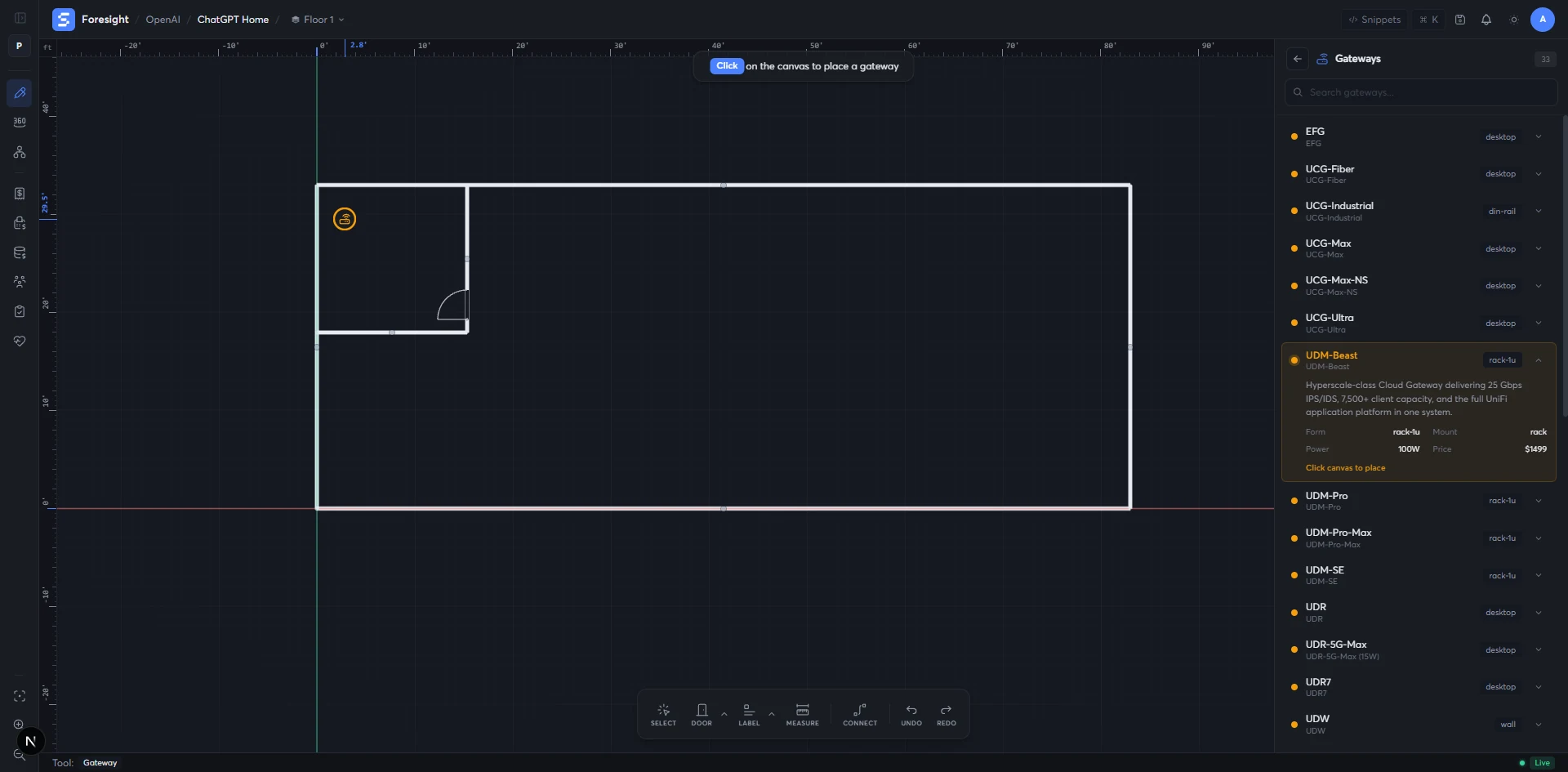
- The current UniFi line (kept in sync)
- Mount-type compatibility per product
- PoE / power / port specs
- Placed devices with full spec
- Live BoM lines as you drag
- Topology that knows what each device can do
Real walls. Real antennas. Honest coverage.
WiFi coverage drawn against the actual building — each wall attenuates signal the way it really does, each AP radiates the pattern its real antenna does, and the map redraws under your cursor as you move things.
- wallsattenuate signal · really
- antennasmanufacturer pattern · per AP
- redrawslive · under your cursor
- bands2.4 / 5 / 6 GHz
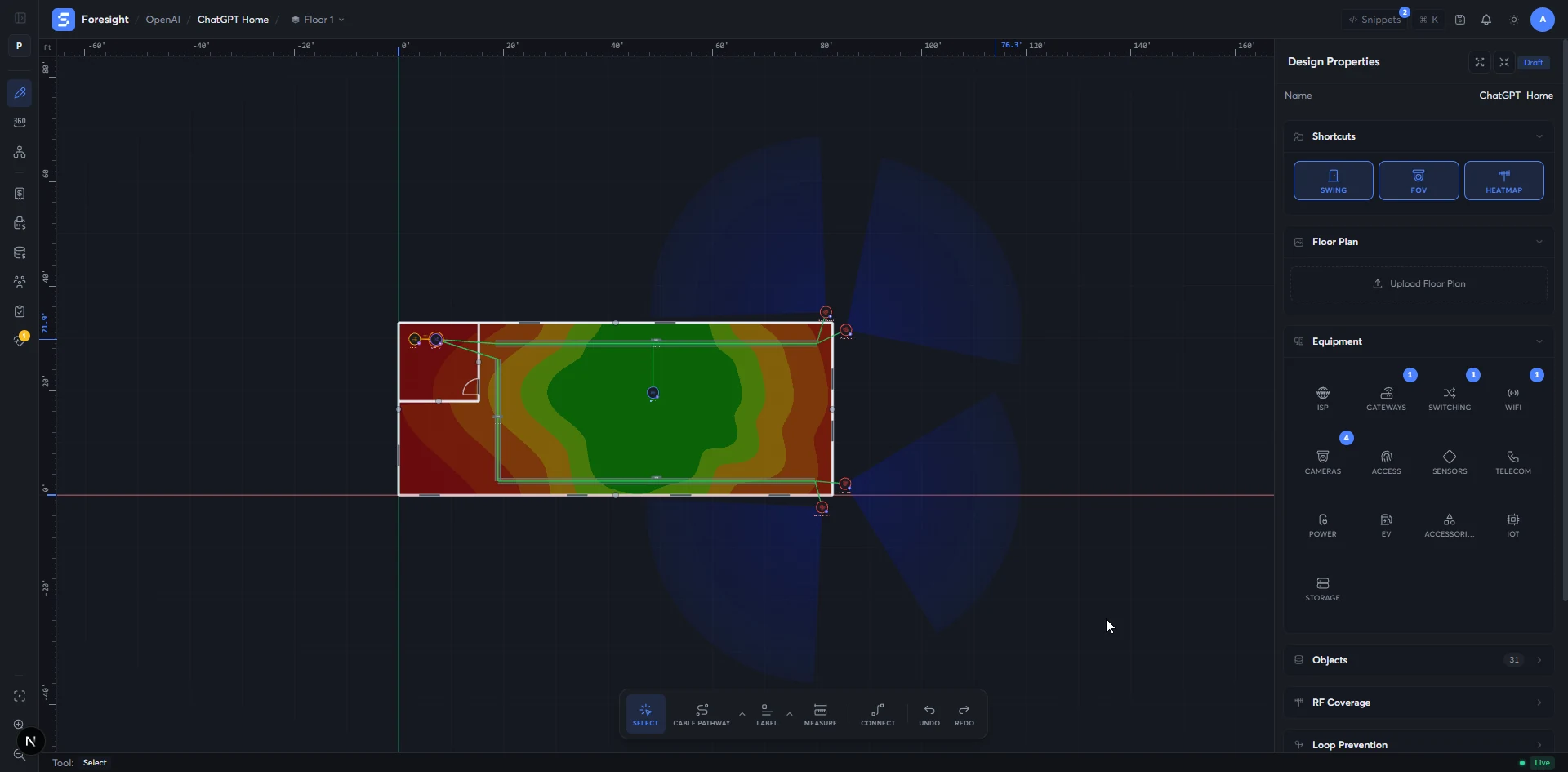
- Walls and what they're made of
- Where you placed the APs (and which bands)
- The antenna pattern for that AP model
- Coverage map across the floor
- Dead zones flagged automatically
- Coverage roll-up per band
The wires the on-site crew will run, drawn against the design.
Connect a switch to a gateway and the topology draws itself — hierarchy, uplink type, cable, PoE budget, port allocation, all from what you placed.
- shapesstar · daisy · meshed
- mediafiber · copper · SFP+
- continuous checksPoE · port · speed · length
- cable runsmeasured · with slack
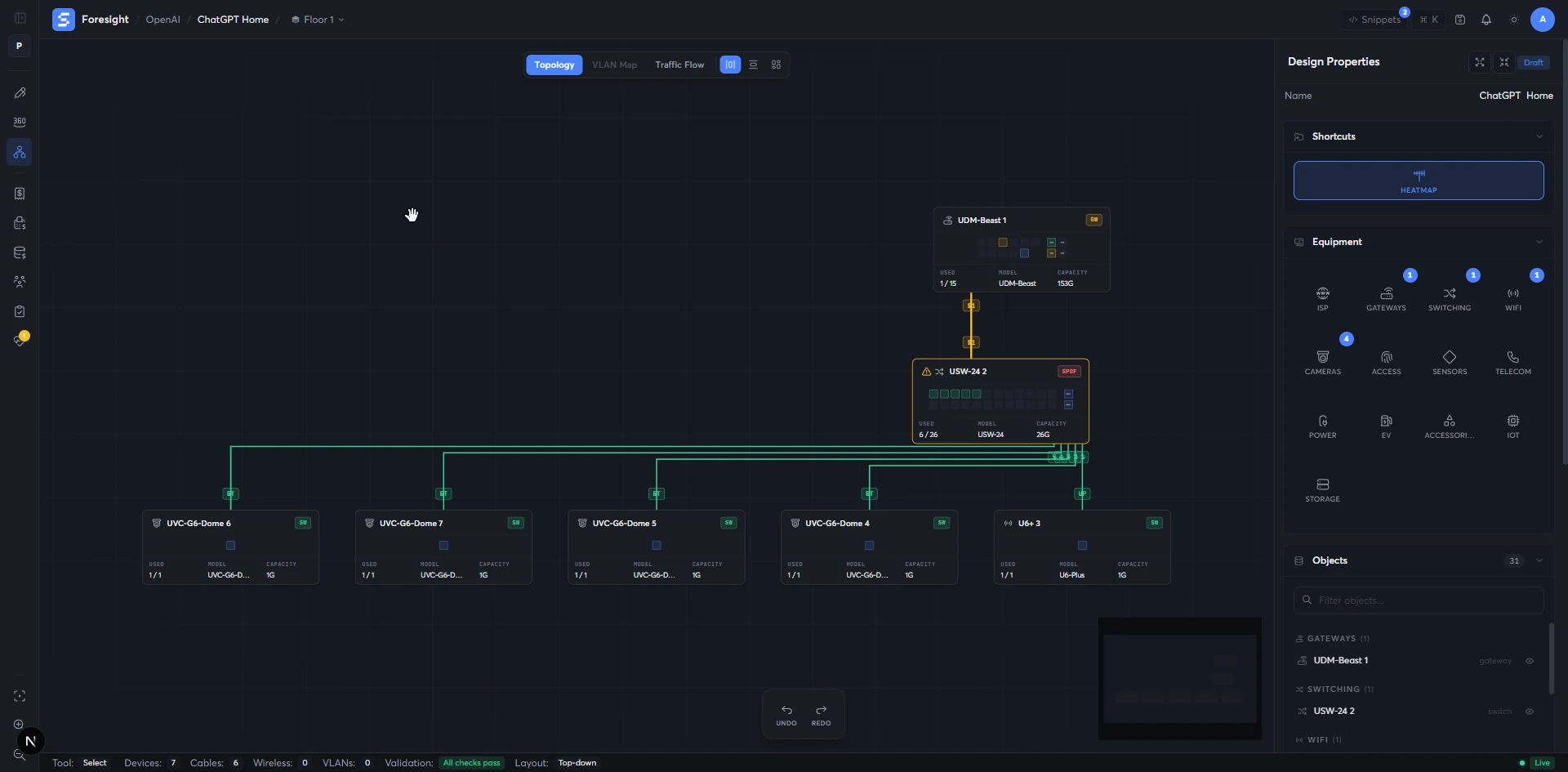
- Placed devices and their ports
- How you wired them together
- Uplink media (fiber, copper, SFP+)
- Switch hierarchy and downstream branches
- Single-point-of-failure highlights
- Per-cable run with measured length
A bill of materials that comes out of the design, not after it.
Equipment, cabling, accessories, pathway, penetrations — totaled live as you draw, then turned into a versioned client quote with one click.
- live totalas you draw
- suggestionsjacks · panels · boxes
- client quoteversioned · line overrides
- exportCSV · client-ready PDF
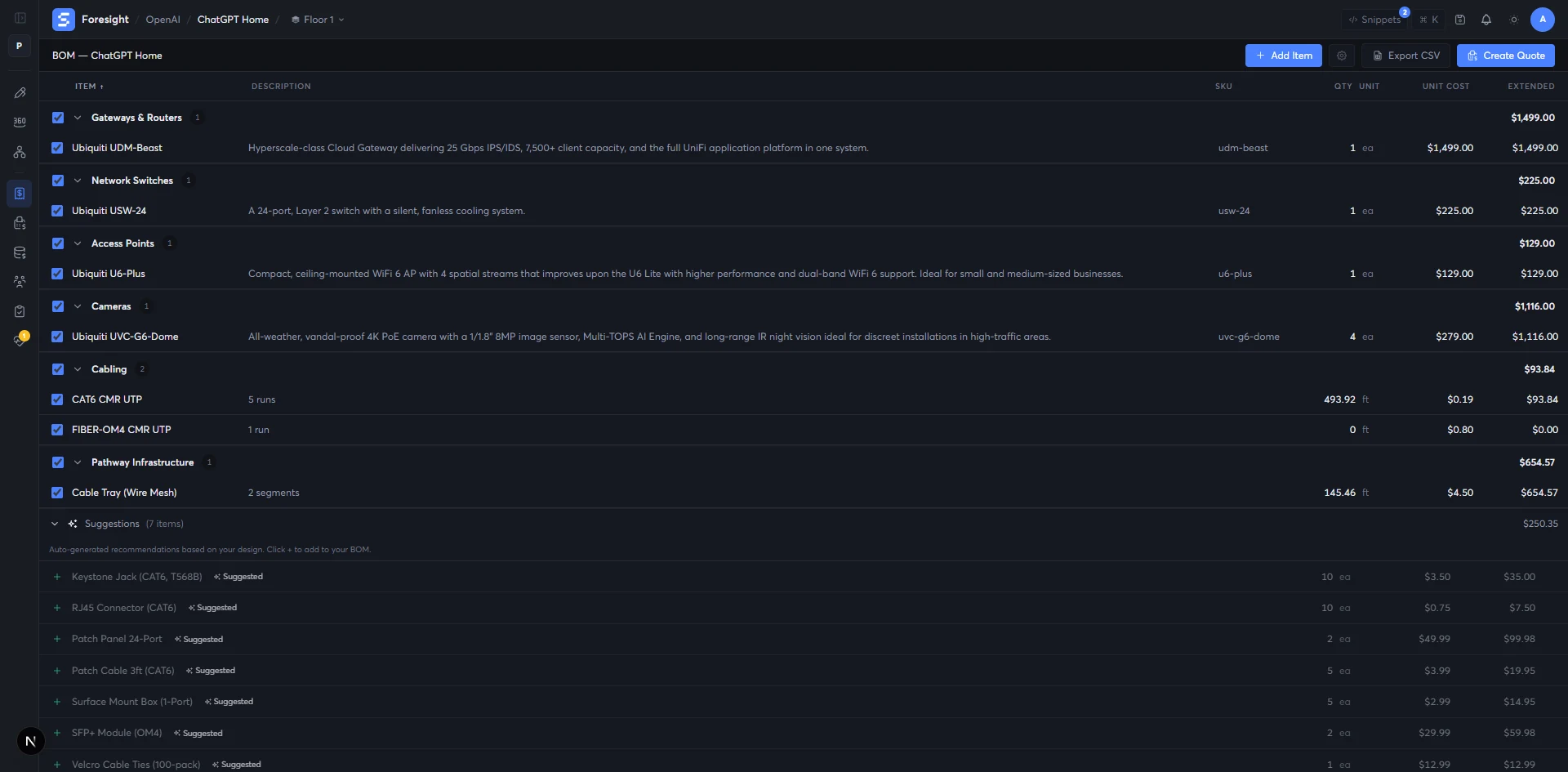
- Placed equipment
- Cable runs and pathway estimates
- Services and labor lines
- Itemized BoM (CSV)
- Versioned client quote with line overrides
- Quote-ready totals (CSV / PDF)
A pre-flight check on the network you haven't built yet.
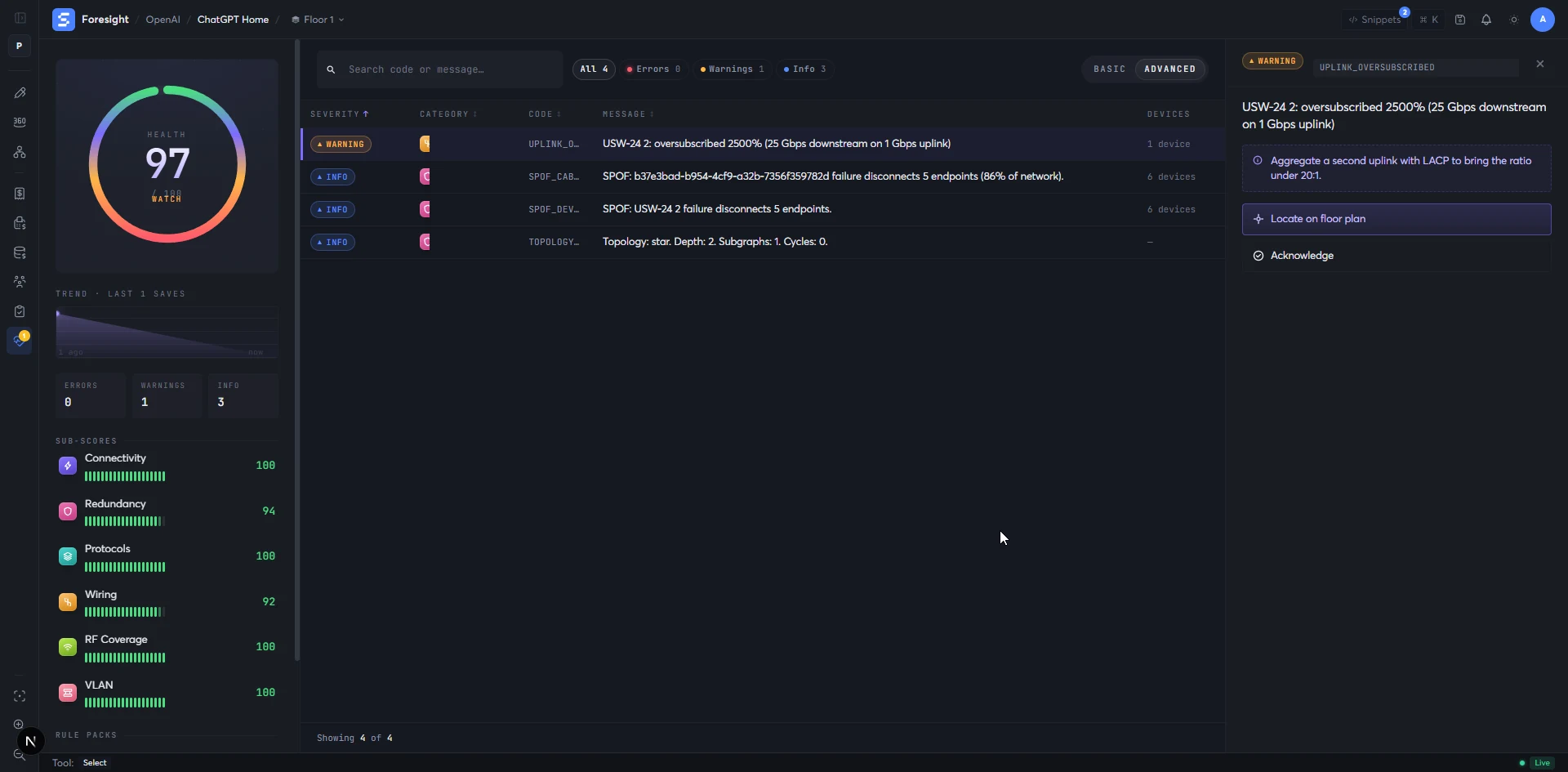
Forty automatic checks across connectivity, redundancy, protocols, wiring and VLAN — every finding pinned to the device on the floor that's causing it, with a fix in plain English.
- checks40 · running continuously
- categoriesconnectivity · redundancy · protocols · wiring · VLAN
- outputscore · sub-scores · findings
- actionlocate · fix · or waive
- The current design
- The check profile for this job
- Anything you've already acknowledged or waived
- Score 0–100 with sub-scores per category
- Severity-ranked findings, each pinned to the floor
- A plain-English fix for every one
See it in space, before anyone climbs a ladder.
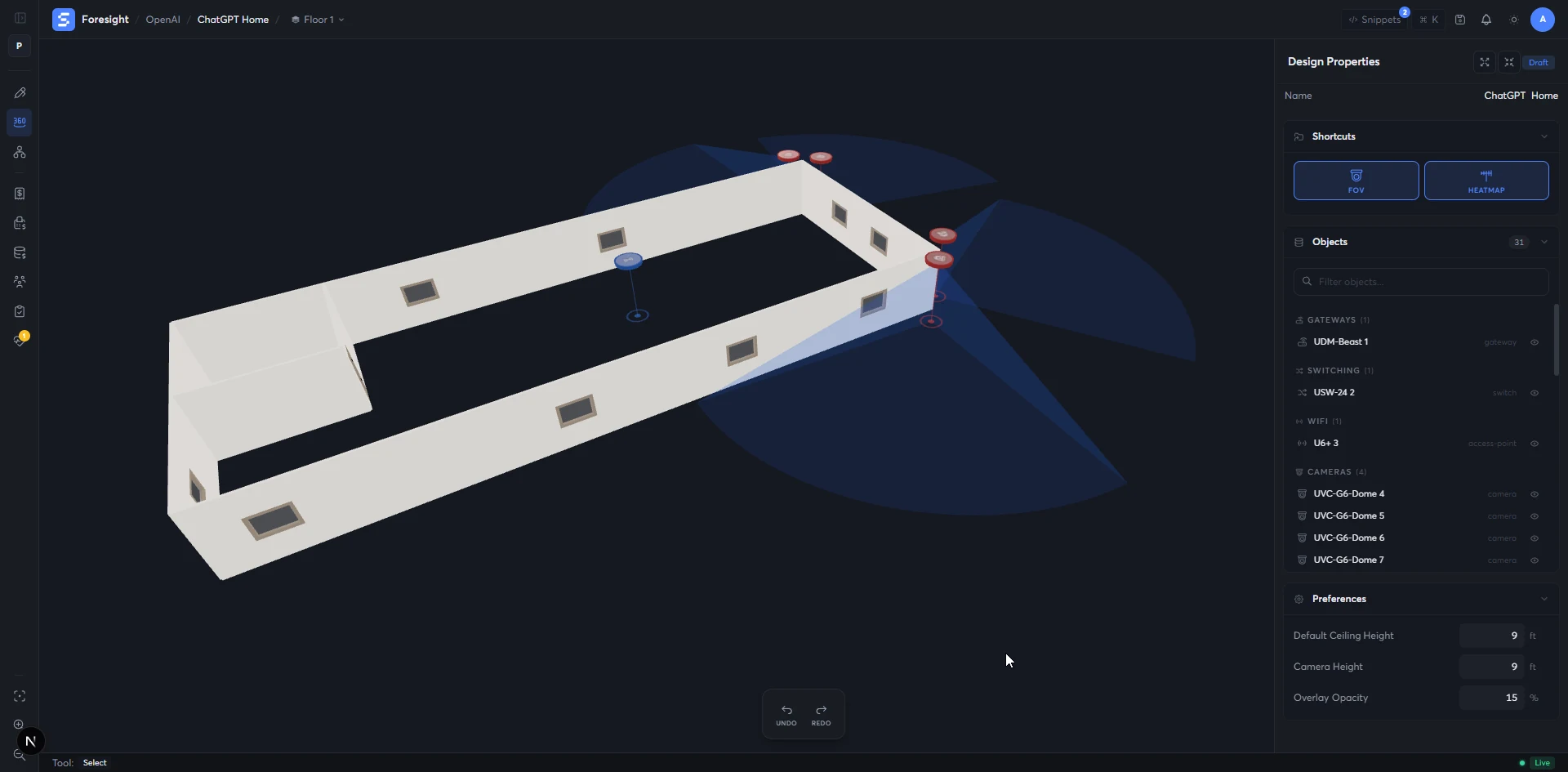
Walls stand at their real height, cameras throw their real field of view, mounts sit where they will sit on installation day — same design, just standing up.
- sourcesame design, two views
- mountsreal heights · real tilts
- camerasreal field of view
- round-trip3D ↔ floor plan · BoM
- The floor plan (walls, mounts, equipment)
- Where each device is mounted, and at what height
- Camera lenses and AP antenna data
- 3D model of the space, true to scale
- Camera coverage you can walk around
- Pre-install confidence — for the engineer and the client
// WHY WE BUILT IT
A network plan should be one document.
Every off-the-shelf tool models a slice. Foresight models the whole engagement — design through install — with a single source of truth underneath every view.
A network plan lives in too many places.
Visio for the topology. A spreadsheet for the BoM. PDFs for the floor plan. A folder of screenshots for the heatmap. A Word doc for the install checklist. By revision four, none of them agree — and nobody can tell you which one is true.
The install crew inherits the gap.
The engineer who designed the network is almost never the one who pulls the cable. When the plan and the BoM and the rack elevation drift apart, the gap shows up on install day — on the floor, with the customer watching, with a truck of the wrong parts and a cable run that’s six feet shorter than the wall it’s supposed to reach. That re-pull is the most expensive cable in the building.
One file. One source. Every view derived.
Foresight holds the floor plan, the equipment, the WiFi coverage, the topology, the BoM, the client quote and the install checklist in a single design. Move a switch, the BoM updates and the quote follows. Edit a wall, the coverage redraws. Seal the design, the install sheet drops out. Nothing to reconcile, because nothing was separate.
// ROADMAP
What ships first, what comes next.
The pre-launch build is feature-complete for the engagements the firm runs today. The right column is the published direction — we do not commit dates pre-launch.
// Ships in v1
- 01Floor-plan import (PDF, image, or draw on the canvas)
- 02Walls, doors, windows, penetrations, cable pathways — all first-class
- 03Snap-to-ortho walls with measured dimensions
- 04Live UniFi catalog with mount types, ports, PoE budgets and antenna data
- 05WiFi coverage map shaped by real walls and real antenna patterns
- 06Topology view with single-point-of-failure highlights and wiring checks
- 07Live bill of materials totaled as you draw
- 08Versioned client quotes with per-line overrides (CSV / PDF)
- 09Health check with 40 continuous checks, plain-English fixes
- 10Install checklist auto-generated for the on-site crew
- 113D view with walls at real height and cameras showing real field of view
- 12Multi-floor support with cross-floor cable runs and camera coverage
// Roadmap
- →Real-time collaborative editing (multi-user cursors, presence)
- →IP and subnet management with auto-assignment per VLAN
- →VLAN configuration with trunk and access semantics
- →Auto-generated CLI snippets and vendor config export
- →Traffic / routing / switching simulation
- →On-site install app for the field tablet
- →Signed health certificate as an exportable artifact
- →Equipment lifecycle tracking with warranty and RMA workflow
One file. One source. One designer.
We’re opening early access to a small first cohort. You’ll get the full editor, the live UniFi catalog, the WiFi coverage map, the BoM and quote pipeline, and a direct line to the team building it. One email when invites go out — no marketing list, no drip, no sales call.